Arrays in JavaScript
So far, we’ve been dealing with variables that hold a single value. But what if we need to store multiple values in a single variable? That’s where Arrays come in!
Analogy
Section titled “Analogy”Imagine you’re planning a grocery run next week. You start listing all the things you need like milk, bread, eggs, vegetables etc and for each item, you write it on a separate sticky note and stick it on your fridge.
Now, after a while, your fridge is covered in sticky notes. It’s messy and hard to keep track of everything.
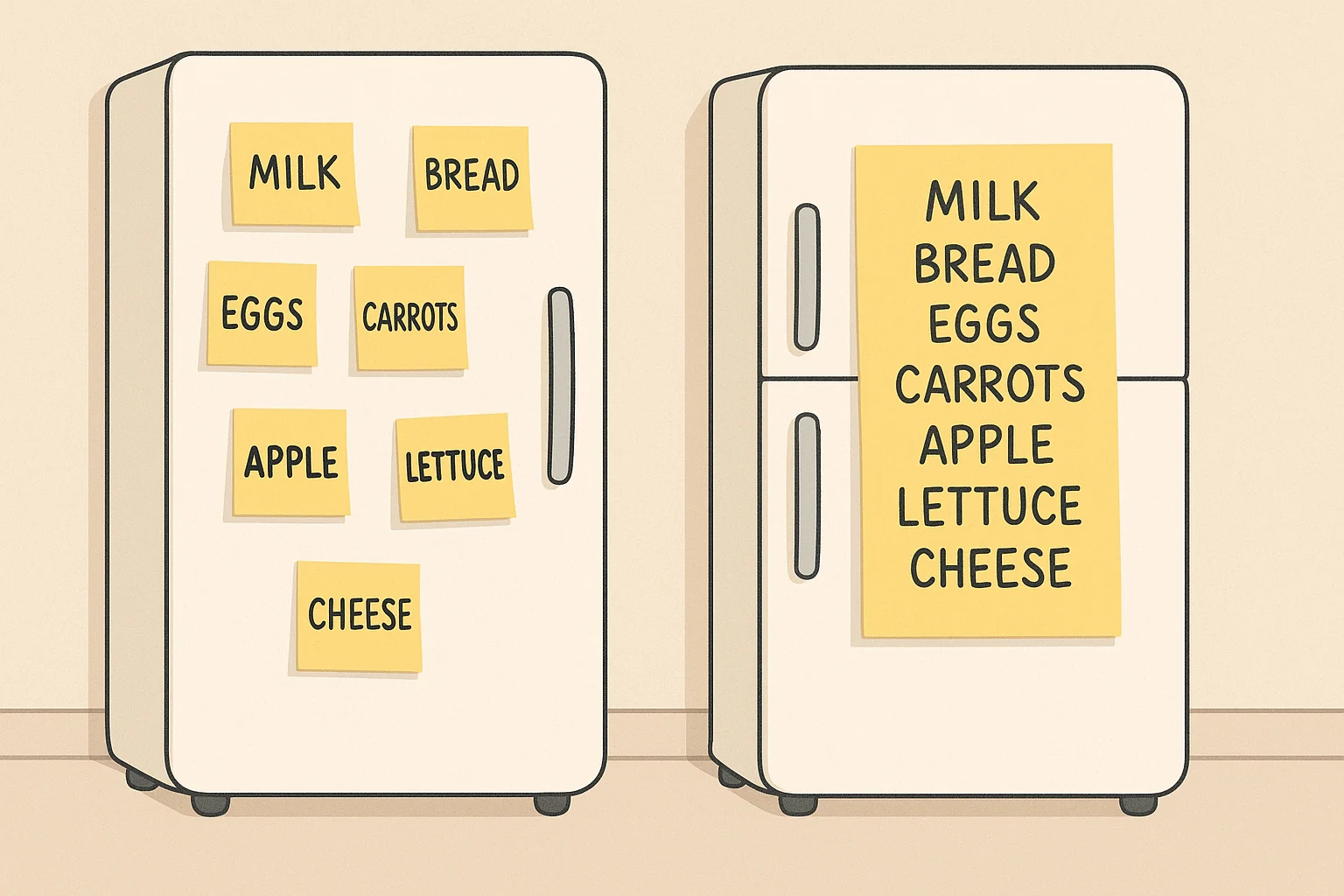
So instead, you decide to take one long sticky note and write all your grocery items on that single note. Everything suddenly feels organized and easy to manage with just one note instead of dozens!
That’s exactly what an Array does in JavaScript. It lets you store multiple values inside one single variable, keeping your data neat and manageable.
Definition
Section titled “Definition”Arrays are non-primitive data-types in JavaScript. It allows you to store multiple values into a single variable. We can use square brackets [] to create an Array with elements separated by a comma.
const shoppingList = ["Milk", "Eggs", "Bread"]; // Array with same data type
const unique = ["Test", 21, false]; // Array with different data types
console.log(typeof []); // Outputs Object. Array is an Object in JS
In the above example, we can clearly see that we can store elements of same or different data types inside an Array. Also the data type of Array itself is Object.
There’s also another way of defining Array by initializing a new Array class (we will learn about classes later on.) and providing values separated by the commas.
const numbers = new Array(1, 2, 3, 4, 5);In the above example, we created an Array of natural numbers and assigned it to the variable numbers.
Note: It is advised to not use this new Array() syntax due to it’s odd behavior when passed only a Single Number.
const arr = new Array(5);
console.log(arr); // [ <5 empty items> ]
In the above example, you might think that we will have a new Array arr with only one element 5 but instead it creates an Empty Array of length 5. Hence it’s usually better to use square brackets [] syntax for better clarity.
But, what are these 5 empty items in this Array?
const arr = new Array(5);
console.log(arr[0]); // undefined
console.log(arr.length); // 5
In the above example, you can see that first element of the array is actually undefined. Even though the length of the Array is 5 but all 5 elements are undefined.
A few other ways to create the Array is using Array.of() and Array.from() methods.
-
Array.of()method allows us to create a new Array from a variable number of arguments, regardless of their type.const newArr = Array.of("First", "Second", 6); console.log(newArr); // ['First', 'Second', 6]From the above example, you can see that a new Array is created with three elements that we passed in
Array.of()method. This implies, that we can create a new array by passing N number of arguments of different datatypes. -
Array.from()static method creates a new, shallow-copied Array instance from an iterable or array-like object. In other words, any iterable element in JavaScript can be used to create a new Array.const nameArray = Array.from("Manmeet"); console.log(nameArray); // ['M', 'a', 'n', 'm', 'e', 'e', 't']From the above example, you can see that it took my Name and actually created an Array separating each letter as different item in the Array. Since
Stringsare iterable, an Array was created using this.// ADVANCED const squaredArray = Array.from([1, 2, 3, 4, 5], (e) => e * 2); console.log(squaredArray); // [2, 4, 6, 8, 10]Array.from()method also can be used to run a callback on all items of an iterable to create a new array.
How big is the Array?
Section titled “How big is the Array?”Now that you’ve learned how to create an Array, you might have made a few of your own. But one question remains, how do we know how many elements an array has?
In other words, how big is it? That’s where the .length property comes in!
const people = ["John", "Nick", "Jane", "Alice", "Bob"];
console.log(people.length); // Outputs 5
In the example above, the array people contains five names, and when we use .length, it returns 5.
You might be thinking, “But I can count the elements myself here. Why do I need .length?”
Good question! In this simple example, you’re right. But in real-world applications, arrays can be huge or dynamically generated and you won’t always know how many items they contain.
That’s when the .length property becomes incredibly useful for tasks like looping, validation, and managing data efficiently.
Accessing Elements from an Array
Section titled “Accessing Elements from an Array”Well, it’s pretty easy to access the elements from an Array. In fact we have done something similar in String section as well.
const shoppingList = ["Milk", "Eggs", "Bread"];
console.log(shoppingList[0]); // Outputs Milk
console.log(shoppingList[1]); // Outputs Eggs
In the above example you can clearly see that to access the first element ‘Milk’ We used the variable name shoppingList, followed by a square bracket [] with a number inside it. We passed 0 as the index inside the square brackets. Similarly passing 1 as the index will output ‘Eggs’.
So the Syntax becomes:
console.log(variable_name[index of element])
Here:
- variable_name represents the variable which is of type
Array - Square Brackets tells JavaScript that we want to access a character at specific
index. - index is the position of the element inside the
Array.
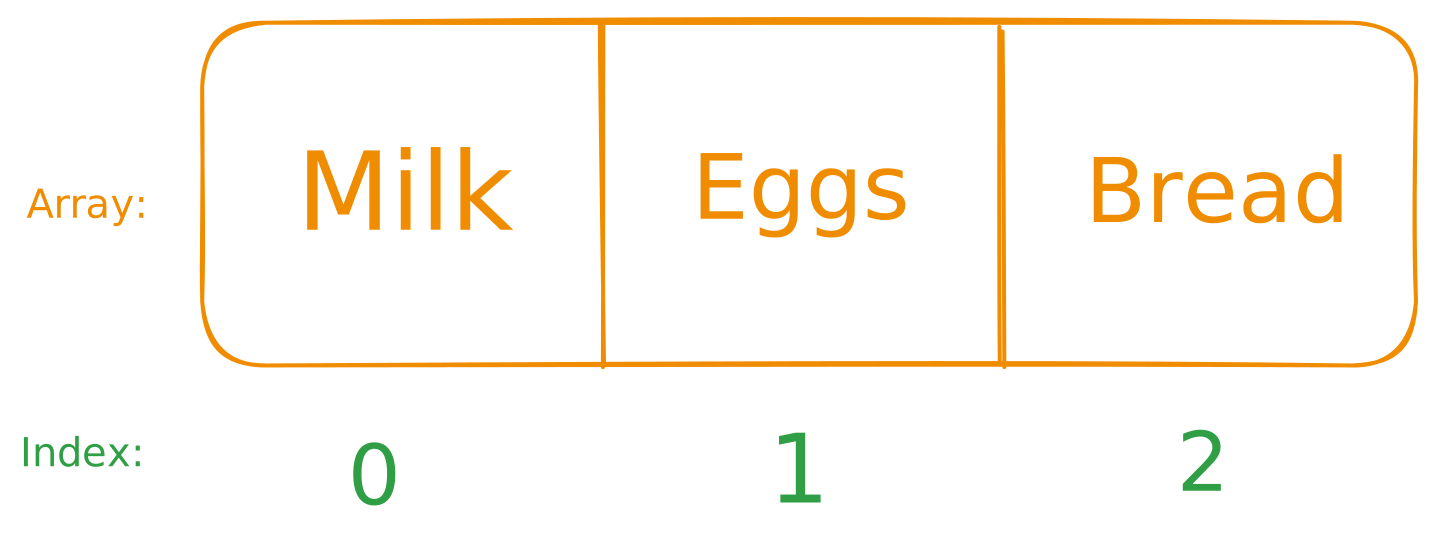
If you remember in the Strings section, we access the first character of a String and we said that the computers start counting from 0. Similarly, for an Array the counting also starts from 0, hence that’s why index 0 outputs Milk and 1 outputs Eggs.
Nice! But what if our array only has 3 elements and we try to access the 4th one? 🤔 Let’s find out.
We will bring the example of shoppingList from the above and we already knew that:
- index
0outputsMilk. - index
1outputsEggs. - index
2outputsBread.
const shoppingList = ["Milk", "Eggs", "Bread"];
console.log(shoppingList[3]); // outputs undefined.
In the above example you can see that we tried to access an index larger than array 3 (keep in mind, index starts from 0) and we get undefined because the index that you are trying to access doesn’t exist.
Note: If you come from any other programming language like C or Java, if you try to access an index more than size of Array you would get an Error. However since JavaScript Arrays are just Objects under the hood, it doesn’t crash and just prints undefined.
Array Methods
Section titled “Array Methods”So far, you’ve learned how to create arrays, check their size, and access elements inside them. But that’s not all! Arrays come with some built-in methods that make adding, removing, or copying elements super easy.
Let’s explore a few of the most commonly used ones.
1. Push()
Section titled “1. Push()”push() method allows you to add a new element at the end of an Array.
const fruits = ["Apple", "Banana"];
fruits.push("Mango");
console.log(fruits); // ["Apple", "Banana", "Mango"]
In the above example, you can clearly see that we had only two fruits Apple and Banana in our Array fruits. We used the push() method with value Mango and now the original Array also contains the Mango and length of the Array becomes 3.
2. Pop()
Section titled “2. Pop()”pop() method allows you to remove an element from the end of an Array.
const fruits = ["Apple", "Banana", "Mango"];
fruits.pop();
console.log(fruits); // ["Apple", "Banana"]
In the above example, we had three fruits in the Array fruits. We used the pop() method and the fruit Mango was removed from the original Array and length becomes 2.
3. Unshift()
Section titled “3. Unshift()”unshift() method allows you to add a new element at the beginning of an Array.
const fruits = ["Banana", "Mango"];
fruits.unshift("Apple");
console.log(fruits); // ["Apple", "Banana", "Mango"]
In the above example, we had two fruits Banana and Mango. When we used the unshift() method with the value “Apple”, it added “Apple” at the very start of the Array. So now the new Array starts with “Apple” and its length becomes 3.
4. Shift()
Section titled “4. Shift()”shift() method allows you to remove an element from the beginning of an Array.
const fruits = ["Apple", "Banana", "Mango"];
fruits.shift();
console.log(fruits); // ["Banana", "Mango"]
In the above example, the first element “Apple” was removed from the Array after using the shift() method. The remaining Array now starts from “Banana” and its length becomes 2.
5. Slice()
Section titled “5. Slice()”The slice() method allows you to copy or extract a portion of an Array without changing the original one.
const fruits = ["Apple", "Banana", "Mango", "Orange"];
const citrus = fruits.slice(2, 4);
console.log(citrus); // ["Mango", "Orange"]
console.log(fruits); // ["Apple", "Banana", "Mango", "Orange"]
In the above example:
- The first parameter 2 represents the starting index (inclusive).
- The second parameter 4 represents the ending index (exclusive).
This means the method will copy the elements starting from index 2 up to (but not including) index 4. However the original Array fruits remained unchanged.
6. Splice()
Section titled “6. Splice()”The splice() method allows you to add, remove, or replace elements in an Array. Unlike slice(), it modifies the original Array.
const fruits = ["Mango", "Orange", "Pear", "Apple", "Lichi"];
const fav = fruits.splice(1, 2);
console.log(fav); // Outputs ['Orange', 'Pear']
console.log(fruits); // Outputs ['Mango', 'Apple', 'Lichi']
Here’s what’s happening:
- The first number
1→ starting index from where we begin making changes. - The second number
2→ how many elements to remove (including start index, like 2 means Orange as 1 and Pear as 2).
So, from index 1, we removed “Orange” and “Pear”.
7. forEach()
Section titled “7. forEach()”The forEach() method is used to execute certain callback function on each element of an Array, one by one.
const myData = orders.forEach((order, index) => {
  console.log(`#${index + 1} : ${order.qty} x ${order.dish}`); // this will run
});
console.log(myData); // returns Undefined
The above example, the forEach will loop through the entire Array and will console log the dishes on the screen with template string format.
Advanced: forEach loop will not Break or perform any promises. It cannot be further chained and is typically used in end of the chain to perform side effects.
// ! INTERVIEW Question - ForEach doesn't work for async - await (Promises)

const sumFunction = async (num) => {
  return num + 4;
};

orders.forEach(async (e) => {
  const x = await sumFunction(e.price);
});

// ? The ABOVE CASE, the forEach loop will not Break or perform any promises.
8. Map()
Section titled “8. Map()”The Map() methods creates a new array which is populated as a result of a function being executed on each element.
const array = [1, 4, 9, 16];
const mapped = array.map((x) => x * 2);
console.log(mapped); // Expected output: Array [2, 8, 18, 32]
In the above example, we have an array of numbers and we ran a map function on the array with a callback function that simply multiplies each element by 2 and then populates it into new mapped array
9. Filter()
Section titled “9. Filter()”The filter() method will return a new Array with only those elements which pass a specific condition in the callback function.
const numbers = [1, 2, 3, 4, 5, 6, 7, 8, 9, 10];
const evenNumbers = numbers.filter((num) => num % 2 === 0);
console.log(evenNumbers); // [2, 4, 6, 8, 10]
In the above example, we have a numbers array from 1 to 10. We have used filter() method to find even numbers by checking if the remainder of the division with 2, provides 0 or not. Since the filter iterates through each element once, the numbers which pass this condition are added to new array evenNumbers.
10. Reduce()
Section titled “10. Reduce()”The reduce() method executes a user-supplied “reducer” callback function on each element of the array, passing in the return value from the calculation on the preceding element, to reduce the array to a single output value.
const numbers = [1, 2, 3, 4];
const sum = numbers.reduce(
  (accumulator, currentValue) => accumulator + currentValue,
  0,
);
console.log(sum); // Expected output: 10
In the above example, we have an array of numbers and we used the reduce() method to calculate their total sum. The callback function takes an accumulator (which keeps track of the running total, initialized to 0 here) and adds each currentValue from the array to it. After iterating through every element, it returns the final accumulated total as a single number.
11. Sort()
Section titled “11. Sort()”The sort() method sorts the elements of an array in place and returns the reference to the same array, now sorted. By default, it sorts elements as strings.
const scores = [10, 50, 20, 40, 30];
scores.sort((a, b) => a - b);
console.log(scores); // Expected output: Array [10, 20, 30, 40, 50]
In the above example, we have an array of unsorted numbers. We used the sort() method with a compare function (a, b) => a - b to sort the numbers in ascending mathematical order. This callback function compares two adjacent elements at a time; if the result is negative, a is sorted before b. Unlike map() or filter(), this method modifies the original array directly.
Hence, these were some popular Array methods. There are more and you can explore them from MDN Docs.
Merging Arrays
Section titled “Merging Arrays”We’ve learned that arrays can store multiple values i.e. basically, they’re like lists. But what if you have multiple lists and want to combine them into one?
It’s actually pretty simple in JavaScript thanks to the spread operator (...).
const grocery = ["Milk", "Bread", "Eggs"];
const essentials = ["Brush", "Toothpaste"];
const shoppingList = [...grocery, ...essentials];
console.log(shoppingList); // Outputs ['Milk', 'Bread', 'Eggs','Brush', 'Toothpaste']
In above example:
...grocerytakes all the elements from the grocery array and spreads them into the new array....essentialsdoes the same for the essentials array.- By combining them inside [
... , ...], we create a new array with all the elements from both lists.
One big array containing everything from your separate lists!
Shallow Copy vs Deep Copy
Section titled “Shallow Copy vs Deep Copy”So far, you’ve learned what arrays are, how to access their elements, and some useful methods. Now, let’s go a little deeper into a concept that will help you understand how memory works in JavaScript.
Before we talk about shallow or deep copies, let’s take a moment to understand memory.
Analogy: Imagine I ask you where you live. You’d probably tell me something like 321 Main St, Boston. That address points me to the exact location of your house. Similarly, when we create a variable and assign a value to it, that value is stored somewhere in memory. Arrays are no different as they’re also stored at a specific memory location inside your computer.
Now, let’s say you and your twin brother build identical houses (same blueprint, same furniture, everything). The only difference? The houses are in different locations. If your brother changes his TV with a Playstation 5, your TV doesn’t magically change too, right?
But now, let’s look at how JavaScript actually handles this.
const roomFromHouse1 = ["Bed", "Table", "TV", "SetupBox"];
const roomFromHouse2 = roomFromHouse1; // now both rooms are identical

console.log(roomFromHouse1); // Outputs ["Bed","Table", "TV", "SetupBox"];
console.log(roomFromHouse2); // Outputs ["Bed","Table", "TV", "SetupBox"];

// Let's change something inside the room from House 2

roomFromHouse2[3] = "Playstation 5"; // Setup Box was replaced with PS5 in House 2

console.log(roomFromHouse1); // Outputs ["Bed","Table", "TV", "Playstation 5"];
console.log(roomFromHouse2); // Outputs ["Bed","Table", "TV", "Playstation 5"];
Wait… what just happened? We only changed roomFromHouse2, but somehow roomFromHouse1 changed too!
This doesn’t match our analogy at all and you’re absolutely right, it doesn’t. This happens because both variables are pointing to the same memory address or in technical term, it’s a Shallow Copy.
So, why did our house analogy seem to break? Let me give you a hint. Houses are at Different Locations.
Think Deeper on this hint!
Ok let’s decode this. In above example, when we assigned roomFromHouse2 = roomFromHouse1, we often assume JavaScript will create a completely new variable and copy the contents of roomFromHouse1 into a separate space in memory.
But that’s not what’s really happening.
In reality, no new copy is created. JavaScript simply creates a new reference i.e. a new label that points to the same memory location.
This behavior is known as a Shallow Copy, or more accurately in this case, a reference assignment.
Both roomFromHouse1 and roomFromHouse2 now point to the same array in memory. So if you change something in one, it reflects in the other because technically, there’s only one array behind the scenes.
It’s like you’re living in a multiverse, there’s two versions of you, but one shared reality. What changes in one house automatically appears in the other. 🌀
🏠 Deep Copy, The “True Twin House”
Section titled “🏠 Deep Copy, The “True Twin House””Alright, so we saw that in a shallow copy, both variables actually point to the same memory location. That’s why changing one array also changed the other because they’re basically sharing the same house in memory!
But what if we actually want to have identical variables but at completely different memory location?
That’s where Deep Copy comes in.
Analogy: This time, you and your brother decide to build two identical houses (same walls, same furniture, same layout) but this time at different locations. Now, if your brother swaps his “Setup Box” with a “PlayStation 5,” your setup stays exactly the same. That’s the idea of a Deep Copy. A completely new copy of your array (or object) that has its own space in memory.
Let’s see this in Action:
const roomFromHouse1 = ["Bed", "Table", "TV", "Setup Box"];

// Deep Copy using JSON methods
const roomFromHouse2 = JSON.parse(JSON.stringify(roomFromHouse1));

roomFromHouse2[3] = "PlayStation 5"; // change in deep copy

console.log(roomFromHouse1); // ["Bed", "Table", "TV", "Setup Box"]
console.log(roomFromHouse2); // ['Bed', 'Table', 'TV', 'PlayStation 5']
In the above example, we can clearly see the outputs are different. That’s because JSON.parse(JSON.stringify()) creates a completely new copy in memory which is independent of the original one. This is how Deep Copy works.
It’s finally like how our analogy is now complete and perfectly makes sense.
However, doesn’t JSON.parse(JSON.stringify()) feels a bit odd? Well, Yes. In fact in new versions of JavaScript we have a new way to create Deep Copies i.e. structuredClone().
const room = ["Bed", "Table", "TV", "Setup Box"];

const clonedRoom = structuredClone(room);
clonedRoom[3] = "Xbox";

console.log(room); // Outputs ["Bed", "Table", "TV", "Setup Box"]
console.log(clonedRoom); // Outputs ["Bed", "Table", "TV", "XBox"]
In above example, we can clearly see that how structuredClone() allowed us to create a Deep Copy instead of that weird and old JSON.parse(JSON.stringify(...)) syntax.
So whenever you need a true deep copy, structuredClone() is your best friend.
Learn more about Shallow Copy and Deep Copy.
🧵 Wrapping It Up
Section titled “🧵 Wrapping It Up”Arrays are one of the most powerful and versatile data structures in JavaScript. From storing grocery lists to handling complex nested data to understanding how they work under the hood is essential.
We explored:
- How to create, access, and modify arrays 🧺
- Common array methods for adding, removing, and slicing data ✂️
- The difference between shallow and deep copies 🧠